General information
Contact oneAdvanced
A user is having login issues
Supported browsers
Email notifications
Covering letters for mortgage filing
Limited Partnership mortgage
Law Society
Legal Forms icons and what they mean
Spellcheck
Digital Submission forms (Hub)
Companies House
Applying for a Companies House Account
Companies House credit account
List of Companies House forms for digital submission
Change of Name - form NM01
Filing for Companies in Scotland and Northern Ireland
Mortgage filing attachments
Authentication items in mortgage filing
Charge number or charge code on release of a charge
Charging instrument description
Charge certificate
Lender authentication code
Contact Companies House
Receiving updates from Companies House
HM Land Registry
Applying for a Land Registry account
Land Registry: Direct Debit
Certified copies for HM Land Registry submission
Land Registry AP1 FAQs
Contact Land Registry
HM Revenue & Customs
Applying for an HMRC/SDLT account
SDLT - agent authorisation
SDLT - paying the tax
SDLT- Correcting a mistake
Contact HMRC
Gateway Service Disruption
Duplicate submission
Invalid credentials
Fee Reconciliation
Rejection Rates
OneAdvanced Identity SSO and Multi-factor Authentication (MFA)
Multi-Factor Authentication Apps
An introduction to Single Sign-on and Multi-factor Authentication
OneAdvanced Identity and MFA FAQs
Why use OneAdvanced Identity and MFA?
Multi-factor authentication via Email
OneAdvanced Identity Authentication Flow
OneAdvanced Single Sign-on login process
Configuring Identity for Azure AD
Configuring Identity for Entra ID
API Client Id and Client Secret
Legal Industry Sector-Specific Considerations
Other References and Useful Links
Working with Legal Forms
Getting started with Legal Forms
Digital Signatures
Searching for forms
Deleting forms
Bundling Library forms together
Client Collaboration (share forms with clients)
Status dashboard
Cloning a form in Library
Crossing out or Striking out text
Form updates
Information barriers
Linked Lasting Powers of Attorney
Printing a form in the Library
Legal numbering
Reports
Sharing forms with colleagues
About the Product Hub
Fonts, emphasis and rich text editing
Library Data bank
Understanding IHT Workflow
Changing a user's name
System Administrators
User Management
Getting Started - Admin user overview
Adding one or more office addresses
Setting a default font
Digital Shredder
Digital submissions invalid credentials
Getting Started
Document Management Systems (DMS)
- All categories
- Document Management Systems (DMS)
- iManage
- Using iManage within Legal forms
Using iManage within Legal forms

Logging in to iManage
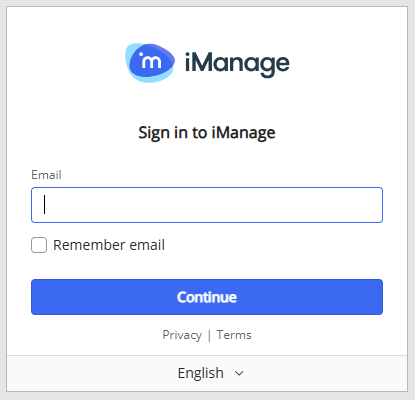
Once iManage is enabled in Legal Forms users will get the option to sign in to iManage after they have logged in to Legal Forms. They will be redirected to the iManage login screen where they must enter their iManage credentials.
Creating a new form
When creating a new form in Library or Hub, users will be redirected to the iManage screen where they can select a folder within iManage to save the form to. Initially it will save a a deep link but once the forms is completed and the PDF generated, there is an option to upload to iManage from Form History.
- Go to Library or Hub
- Search for the required firm and click on it - you will now see the iManage screen
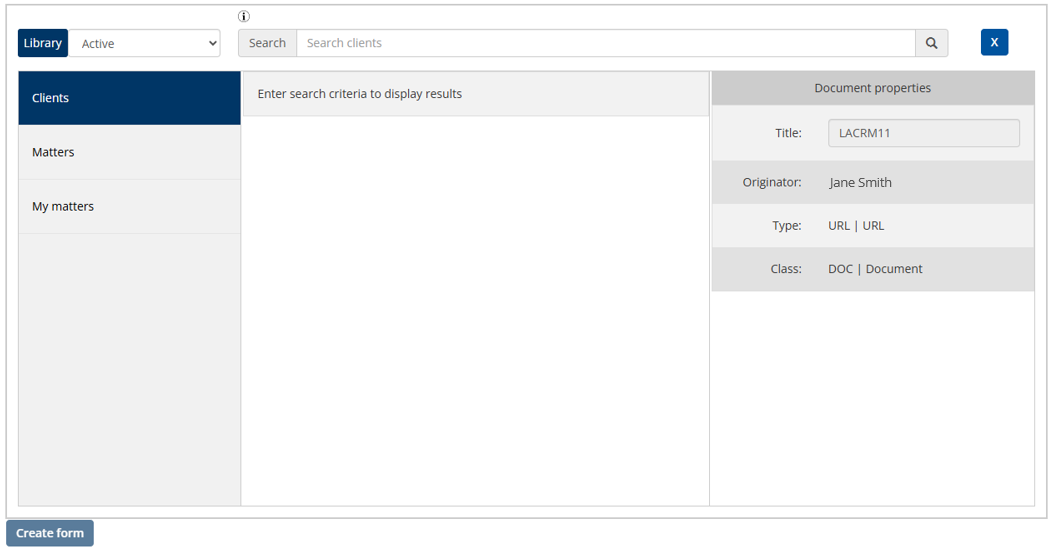
- From here you can search for a client in the top search bar or you can select a folder from the left-hand side
- The folder list will now show and you can select a sub-folder
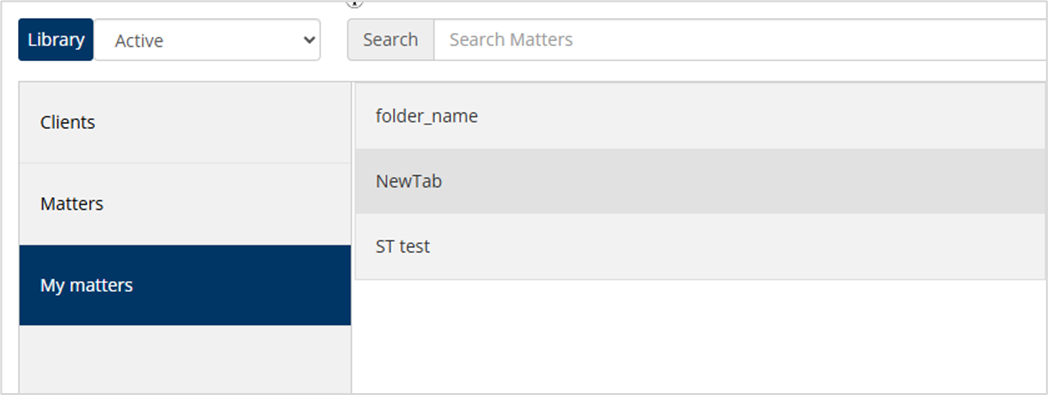
- Once you have selected the required folder, the Create form button will be enabled
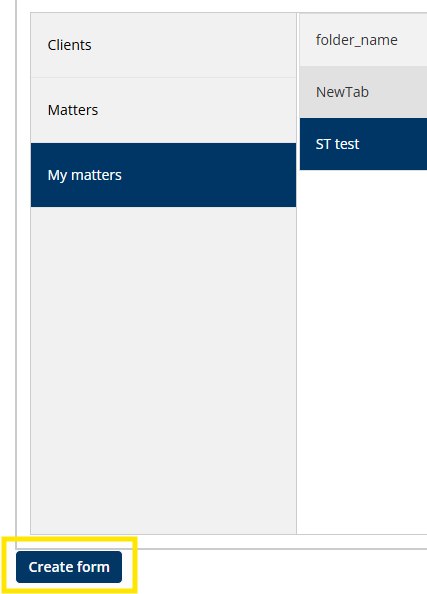
- The form will now open as usual in Legal Forms
Saving forms to iManage
By default, a form will be saved to iManage as a deep link. This is so a user can go back into the form by clicking the deep link and continue to edit it in Legal Forms.
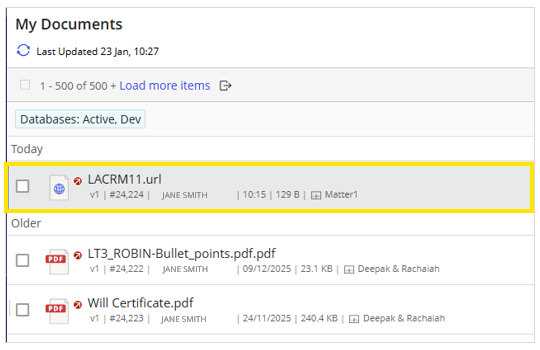
To continue editing the document
- Select the Deep Link: Click on the provided deep link that will open the document in Legal Forms. This link will direct you to the editable version of the form.
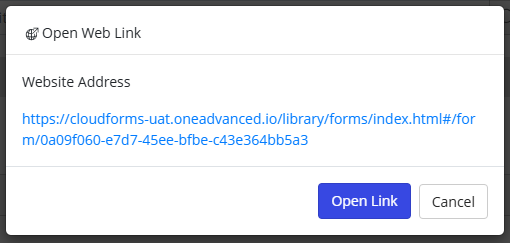
- Edit the Document: Once the document opens in Legal Forms, make any necessary edits or updates to the content.
- Generate the PDF: After completing your edits, you can generate a PDF version of the form from Form History.
- Upload to iManage: Once you have the finalized PDF, upload it back into iManage for storage or further processing.
Uploading the PDF to iManage
- Generate the PDF as usual
- Go to Form History and select Upload to iManage
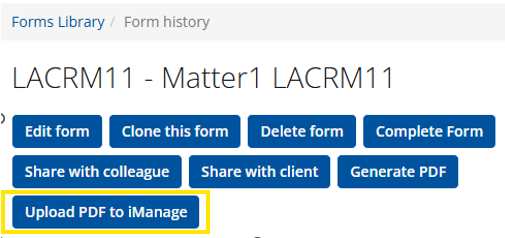
- Select the required folder from the iManage screen
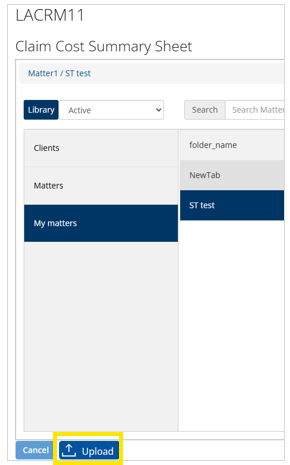
- Click on Upload and select the required form
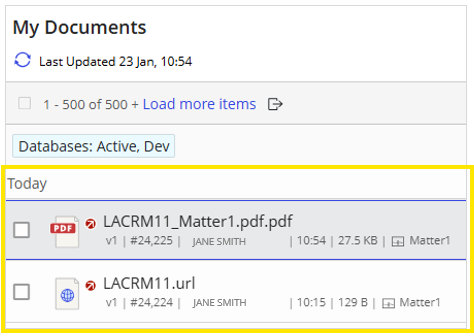
The PDF version of the form will now show in iManage